
Pages

Showing posts with label with. Show all posts

Thursday, December 11, 2014

Way to Jailbreak iPhone 4 On iOS 5 1 With Redsnow Mac OS X


This tutorial will help you to jailbreak your iPhone 4 using Redsnow . First of all i tell you that it is tethered jailbreak so you have to connect your iPhone with Mac computer and re-run redsnow to boot your iPhone 4 into fully operational state every time your iphone loses power. I am also telling you that this jaolbreak will not work on iPhone 4S and that iBooks will not work correctly until iPhone Dev-Team implement a patch that will fix this.
To jailbreak follow these steps .

Step 1: To get started you will need to( download RedSn0w 0.9.1
0b6) on your Mac
Step 2: Once download process is completed start RedSn0w 0.9.10b6 launcher and click Jailbreak button located in middle of your window
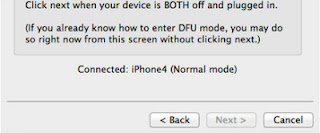
Step 3: When the next window shows up, connect your iPhone 4 with your Mac using USB cable and power off your iPhone.


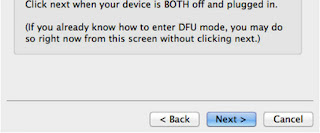
Step 4: When you are ready click Next button in existing window which will start DFU mode process


Step 5: When you click Next button simply follow instructions inside redsn0w window and continue clicking Next, after every step you perform on your iPhone (those steps you can find below)
  • Hold down the Power (corner) button for 3 seconds
  • Without releasing the Power button, also hold down the Home (bottom center) button for 10 seconds
  • Without releasing the Home button, release the Power button BUT KEEP holding the Home button for 15 seconds
Step 6: After you have successfully entered in DFU mode with your iPhone 4, redsn0w will begin preparing your iPhone 4 for the Jailbreak
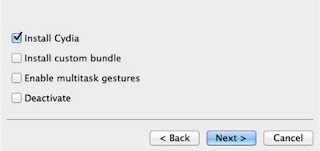
Step 7: Once redsn0w is finished preparing your iPhone 4 for Jailbreak a new window will show up where you need to specify options to go along with Jailbreak. You can specify any option you want but I suggest you to choose only Install Cydia and click Next
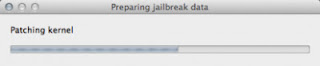
Step 8: Once you click next the Jailbreak process will begin, DO NOT interrupt this process and wait until it’s finished. When jailbreak process is finished iPhone will boot up and stuck at Apple logo. If this happens to you it’s because this is a tethered jailbreak and you will need to boot tethered with redsn0w in order to make your iPhone work.
Step 9: To boot your iPhone using redsn0w lunch redsn0w again and click Extras button and then choose Just bootbutton
Step 10: After that you will simply need to put your iPhone into DFU mode again.
ReadHere..

Friday, November 7, 2014

Nokia Asha 230 Insert Sim Solution With Jumper Way


Nokia Asha 230 insert sim problem solution With Jumper Way . 100% Tested

Nokia Asha 230 Sim ic jumper. Nokia Asha 230 Dual Sim Not Working Solution
ReadHere..

Monday, November 3, 2014

Nokia 2730c LCD Display Problem Solution with jumper ways

Heres a Nokia 2730c  LCD Display Problem Solution with jumper ways and connection tracks, that may help solve display problems like, blank or empty screen display, blue screen display, white blinking screen display, saturated or garbled screen display.

If encountered such display problem on Nokia 2730c, you must first try to install a new replacement LCD screen module and update the device flash firmware. Ensure also that the LCD pin connector  is not damaged or lifted.

Nokia 2730c LCD Screen Display Connection Jumper Ways and Tracks
nokia

The above solution shows the LCD display connection line paths from the LCD pin connector to a corresponding resistor components near the application processor chip. These resistors has a resistance value of 33 ohms each. You must also check and then replace this resistors if found damaged to obtain the display signal data that feeds to the LCD Screen module. The LCD data signals were generated from the CPU chip and then feeds to these resistors before it goes through to the LCD screen. 
ReadHere..

Thursday, September 25, 2014

How to Share Content with DLNA Certified Devices on Sony Xperia Z1 Compact

Playing files from DLNA Certified™ devices on your device

When you play files from another DLNA Certified™ device on your device, this other device acts as a server. In other words, it shares content over a network. The server device must have its content sharing function enabled and give access permission to your device. It also must be connected to the same Wi-Fi® network as your device.

To play a shared track on your device

1. Make sure the devices that you want to share files with are connected to the same Wi-Fi® network as your device.
2. From your Home Lcd, tap , then find and tap WALKMAN.
3. Select a device from the list of connected devices.
4. Browse the folders of the connected device and select the track that you want to play. The track starts playing automatically.

To play a shared video on your device

1. Make sure the devices that you want to share files with are connected to the same Wi-Fi® network as your device.
2. From your Home Lcd, tap , then find and tap Movies.
3. Select a device from the list of connected devices.
4. Browse the folders of the connected device and select the video that you want to play.

To view a shared photo on your device

1. Make sure the devices that you want to share files with are connected to the same Wi-Fi® network as your device.
2. From your Home Lcd, tap .
3. Find and tap Album > My albums. All your available online albums and connected devices are displayed.
4. Select a device from the list of connected devices.
5. Browse the folders of the connected device and select a photo to view it.

Preparing to play content from your device on DLNA Certified™ devices

You must set up file sharing on your device first before you can view or play media files from other DLNA Certified devices. Your device works as a media server when it makes content available to client devices. When you set up file sharing on your device, you must also give access permission to client devices. After you do so, such devices appear as registered devices. Devices that are waiting for access permission are listed as pending devices.

To stop sharing files with other DLNA Certified™ devices

1. From your Home Lcd, tap .
2. Find and tap Settings > Xperia™ Connectivity > Media server settings.

To set access permissions for a pending device

1. From your Home Lcd, tap .
2. Find and tap Settings > Xperia™ Connectivity > Media server settings.
3. Select a device from the Pending devices list.
4. Select an access permission level.

To change the name of a registered device

1. From your Home Lcd, tap .
2. Find and tap Settings > Xperia™ Connectivity > Media server settings.
3. Select a device from the Registered devices list, then select Change name.
4. Enter a new name for the device.

To change the access level of a registered device

1. From your Home Lcd, tap .
2. Find and tap Settings > Xperia™ Connectivity > Media server settings.
3. Select a device from the Registered devices list.
4. Tap Change access level and select an option.

To get help about sharing content with other DLNA Certified™ devices

1. From your Home Lcd, tap .
2. Find and tap Settings > Xperia™ Connectivity > Media server settings.
3. Tap Question mark icon.


ReadHere..

Nokia 6303c mmc Problem with Jumper Solution

Nokia 6303c mmc solution.
Nokia
ReadHere..

Wednesday, September 24, 2014

UnRoot Manual Update Galaxy S3 I9305 with Official Jellybean 4 1 2 XXBME3 Firmware

 Samsung Galaxy S3 I9305 smartphone can now be un rooted. Once the device is unrooted, the warranty can be reclaimed. Let’s check out on how you can un root the device by applying the official firmware which is released by Samsung. Before we proceed on to check on what are the instructions to apply this firmware update, you need to follow the list of quick pre requisites which we have summed up below. To unroot the device, the simplest process to do is to apply the official firmware update which was rolled out by Samsung Electronics. This firmware which we will be talking about is the official firmware and is dubbed as XXBME3 Jellybean 4.1.2 Firmware.


Quick Pre Requisites:
  • Create a backup of all your data with the help of below mentioned steps. Though, you can back up the data with KIES as well, we recommend you to backup manually with the help of below mentioned steps as sometimes KIES refuses to detect the device.
SMS – Use “SMS Backup & Restore app”,
Contacts – Sync with the Gmail application,
Call Log - Call Log and Restore
Images, Songs, Videos, Files – Copy to internal / External SD Card,
APN and MMS Settings – Note down from the path “Applications > Settings > Wireless and Network > Mobile Networks > Access Point Names”
  • From the path “Settings > Development Options > USB debugging” enable the USB Debugging Mode. Minimum charge left in your phone is 30% or else there is a risk of device getting turned off in the middle of rooting process.
Disclaimer: Follow all the instructions mentioned in this article as if there is any damage caused due to not following instructions then we shall not be held liable or responsible. Just in case if you face any issues then we will try our level best to address the same.
Assuming that you are done with all the above mentioned steps, you can now proceed below,  where we have mentioned the detailed guide on how to apply with this firmware update. 


Procedure to Update Galaxy S3 I9305 LTE Smartphone with Jellybean 4.1.2 Firmware:
  • Open Odin in your computer. Download Mode in Galaxy S3 I9305 can be entered by first turning Off the device and then hold Volume Down Rocker Key + Menu Button and then Power ON the device. Once the device is booted and you see the Download Mode Green Robot, you can release the button combos.
  • Connect your device to the computer with the help of original USB cable and then you will see that the ID : COM section will turn Yellow / Green, indicating that all the drivers are installed successfully.
  • Click on “PDA” to select the tar file which you got from the firmware package which is the TAR File which you got after extracting the file from the first step.
  • Once all the file is selected, click on “Start” to start the process of firmware update. Once the firmware update process is completed which will be mentioned in the ODIN, the Galaxy S2 device will be rebooted.
  • For firmware update to be finished, it will take around 2-3 minutes for applying the update. Once the device is updated successfully, the device will be rebooted. As soon as you see the Language preferences or the Home Screen, you need to disconnect the device from computer and enjoy using your phone.
Note: If the device gets into the boot loop sequence or say gets stuck in the welcome Lcd, just re insert the battery and re follow the above instructions so as to again follow the above mentioned instructions.

So there you go, you have now successfully updated your phone with the latest firmware of Jellybean 4.1.2 in your Galaxy S3 LTE I9305 smartphone. Do let us know in the comments section just in case if you face any issues.
ReadHere..

Tuesday, September 23, 2014

Nokia 6303c mmc Problem with Jumper Solution Tested

Nokia 6303 mmc solution..
Nokia
ReadHere..

Monday, September 22, 2014

How to Install Samsung Galaxy S Duos 2 S7582 with Android 4 2 2 DDUANC1 Jelly Bean Official Firmware Using Odin Guide


Samsung Galaxy S Duos 2 (GT-S7582) has already received a new Android 4.2.2 Jelly Bean update with firmware build number S7582DDUANC1. The new official firmware is now available as an Over-The-Air (OTA) update as well as through Samsung KIES.
Firmware details
PDA: S7582DDUANC1
CSC: S7582ODDANC1
MODEM: S7582DDUANC1
Version: Android 4.2.2
Build date: Mar 13, 2014
Regions: India, Bangladesh, Nepal, Sri Lanka
Samsung Galaxy S Duos 2 S7582 users who missed the OTA update notification or unable to access the update over Samsung KIES, can now download and install the same manually using our step-by-step guide.
Pre-requisites
1. Install USB Drivers for Samsung Galaxy S Duos 2 on the computer.
2. Enable USB Debugging Mode on the phone by navigating to Settings >> Developer Options.
3. Make a backup of all your important data before following the guide.
4. Ensure the battery of the phone is charged more than 80 percent.
5. The Android 4.2.2 DDUANC1 Jelly Bean firmware is compatible only with the Galaxy S Duos 2 (GT-S7582). Applying this to any incorrect variant might brick the device. Verify the model number of the Galaxy S Duos 2 by navigating to Settings >> About Phone.
Files Required
1. Android 4.2.2 DDUANC1 Jelly Bean Firmware (Mirror Link) for Galaxy S Duos 2 S7582
2. Odin 3.07
Steps to Update Galaxy S Duos 2 S7582 with Android 4.2.2 DDUANC1 Jelly Bean Firmware
Step 1: Extract Firmware zip file using WinRAR/7-Zip/WinZip or any other extracting tool, you will get a .tar.md5 file and some other files (optional).
Step 2: Extract Odin zip file and you will get Odin3 v3.07.exe along with few other files.
Step 3: Switch off the Galaxy S Duos 2.
Step 4: Boot the device into Download Mode by pressing and holding Volume Down, Home and Power buttons together until a construction Android robot icon with a warning triangle appears on Lcd. Now press the Volume Up button to enter Download Mode.
Step 5: Run Odin on the computer as an Administrator.
Step 6: Connect the Galaxy S Duos 2 to the computer using USB cable while it is in the Download Mode. Wait until Odin detects the device. When the device is connected successfully, the ID: COM box will turn to light blue with the COM port number. Additionally, the successful connected will be indicated by a message saying Added.
Step 7: Select the following files in Odin from extracted S7582DDUANC1 firmware folder:
  • Click the PDA button and select the .tar.md5 file.
  • Click the Phone button and select file with MODEM in its name. Ignore if there is no such file.
  • Click the CSC button and select file with CSC in its name. Ignore if there is no such file.
  • Click the PIT button and select the .pit file. Ignore if there is no such file.
Step 8: In Odin, enable Auto Reboot and F. Reset Time checkboxes. Also, ensure the Re-Partition checkbox is chosen only if a .pit file was chosen in the previous step.
Step 9: Verify everything suggested in Step 7 and Step 8 is done correctly. Then hit the Start button to begin the installation process.
Step 10: Once the installation process completes, your phone will restart and soon you will see a PASS message with green background in the left-most box at the very top of the Odin. You can now unplug the USB cable to disconnect your device from the computer.
Samsung Galaxy S Duos 2 S7582 should be now updated with Android 4.2.2 DDUANC1 Jelly Bean official firmware. Head over to Settings >> About Phone to verify the software version running on the device.
Note: If Galaxy S Duos 2 S7582 stuck at booting animation after Step 10 then go to recovery mode (press and hold the Volume Up, Home and Power buttons together) and perform Wipe data/Factory Reset and Wipe Cache Partition task before selecting reboot system now function. In recovery mode use Volume keys to navigate between options and Power key to select the option. Please note, performing wiping task will erase your device internal memory data and not external SD card data.
Read also: How to Root Galaxy S Duos 2 S7582 on Android 4.2.2 Jelly Bean and Install CWM Recovery
ReadHere..

Thursday, September 11, 2014

How to flash nokia 206 using usb with hwk

Todays posts subject is how to flash nokia 206 phone using usb cable.This is very easy ways to flash nokia 206.Just flash step by step following this solution.


How to do this: first connect usb cable following picture then open hwk nokia program then click bb5 tab and select model and set firmware.then click check.(note : when you click check then connect battery ) then you will be see  checking info.then click flash  (note : when you click flash then connect battery ) after that your phones will be start flash.
ReadHere..

Monday, September 8, 2014

Nokia 2700c Problem with Jumper Solution

Nokia 2700c lcd solution
Nokia
ReadHere..

Nokia Asha 300 keypad Problem with Jumper Solution

Nokia Asha 300 keypad solution

 Nokia

ReadHere..

Thursday, September 4, 2014

Nokia 6303c mic Problem with Jumper Solution

Nokia 6303c mic solution.
Nokia
ReadHere..

Tuesday, September 2, 2014

How to Easily Root Your LG G Pad 8 3 With Guide

Have you bought the new LG Android based tablet? Yes I’m talking about the G Pad 8.3, a great handsets that combines high end specs and features with an impressive design and affordable price tag. Anyway, if you have bought this device, then probably you are looking into a suitable root method. Why to root a handset that is already offering high end performances? Well, we will talk about this and about other relevant aspects below, so before heading to the proper root solution, check the following lines.
So, why to gain root access on the LG G Pad 83? The reasons are many, but we will detail only the most relevant ones. First, you need to gain root access because probably you will want to install a custom ROM firmware. The LG G Pad 8.3 is not a Nexus handset which means that the tablet is running Android Jelly Bean OS and not Android 4.4 KitKat firmware. Also, the OTA KitKat update is expected only next year, on February or March, so you will probably want to test the latest features, apps and capabilities ahead of official release of Android 4.4 and for doing that you will need to flash a custom ROM, thus gaining root access.
Furthermore, if you want to apply a custom firmware, first you will have to flash a custom recovery image, like CWM or TWRP recovery. As you can already tell, in that case root access must be granted on your G Pad 8.3. We can go on with these examples as root is required also when trying to remove the bloatware, to install a custom kernel, to overclock the CPU, to install custom apps from Google Play, to remove or add features or inbuilt programs and so on. Basically, on a rooted device you can improve the performances, upgrade the battery life, bump the speeds, change the classic Android UI and lot more.
But, on the other hand, you should know that there are negative aspects too. For example, when gaining root access you are applying an unofficial operation that has nothing to do with Google or with LG. That’s why, if you complete this tutorial, the LG G Pad 8.3 warranty will get void. Also, if you root your tablet, when Android 4.4 OTA update will be rolled out you will not be able to receive the firmware – on a rooted handset the OTA updates can be only manually installed. As for the warranty, if you will need it back you will have to flash the stock Android software on your G Pad 8.3 by following a suitable step by step guide – then the root access will be revoked and the tablet restored to its initial state.
Good; so if you want to complete this tutorial the up mentioned info should be cleared on your mind. Now, the tool from below (the root package to be more precise) is being provided by those of xda-developers so we have to thanks them for this step by step guide. Now, before heading to the root procedure, you first have to prepare your tablet from what will shortly follow.
Start by making a backup. It is important to save your personal info and accounts as in some cases, when gaining root access the system is being wiped out, or the data corrupted. I recommend you to save the contacts, the internet settings, your personal accounts, data and info and market apps. Also, save anything else that’s saved on the internal storage memory of your LG G Pad 8.3 by using suitable backup and restore apps from Google Play – don’t worry as these tools are free distributed (you don’t have to spend your money on the download procedure).
A computer, your handset and its USB cable are being required for this process. For being able to connect the devices you will first have to enable the USB debugging option from your tablet – just go to “menu – settings – developer options”. Also, on your computer the G Pad drivers must be installed. If not, you can install the drivers manually by downloading the required files from here. Your computer shouldn’t be installed with antivirus tools. If there are antivirus or any other security programs installed, the best will be to deactivate the security protection before starting the root process – these tools might interfere with our work.
It is important to know that if your G Pad gets turned off in middle of root, your tablet might get bricked out. So, first of all check the battery status and if there is less than 50% power left, plug in the charger. Also, check the model number of your G Pad. This root solution works only for the LG G Pad 8.3 V500; don’t use the steps from below in case you own a different Android based device because this tutorial is compatible only with the mentioned tablet.
Perfect; you are now prepared for the proper root operation. Do remember that this procedure is complex, risky and unofficial. Because of that, for avoiding the unpleasant situations, stick to the steps from below. Don’t complete things by yourselves without consulting the guidelines from this tutorial because you can end up in bricking your LG GPad.

How to Easily Root LG G Pad 8.3

  1. On your computer download the root file from here (the same package can be downloaded from here, or from here).
  2. On your computer, preferable on desktop, unzip the downloaded root file.
  3. On your G Pad enable the developer option; do that by going to settings – about phone and tap on built number (seven times).
  4. Connect your tablet with the computer.
  5. Use and plug in the USB cable in order to establish the connection.
  6. Go to the root folder from desktop.
  7. From there run the root.bat executable file.
  8. It will push g_security to your SD-Card.
  9. The process will be stopped.
  10. At this point you need to unplug the USB cable; disable and re-enable the USB debugging option on your tablet as showed above.
  11. Connect your handset with the computer once more.
  12. Press any key to continue the root operation.
  13. Now an alert message will be displayed. At this pint if you continue the warranty will get void.
  14. Press ctr+c if you want to abort.
  15. If not, follow the on-screen prompts.
  16. Your tablet will be rooted.
  17. In the end the Superuser.apk will be displayed in your app drawer.
  18. Done.
That was all for now. Gaining root access on your LG G Pad 8.3 wasn’t hard, as the steps you had to complete were easy to follow. Anyway, if you have experienced issues or problems while applying the procedure from above, try to use this tutorial: “how to resolve most common Android issues”.
Now, as your tablet is finally rooted, you can test the new Android 4.4 KitKat firmware without waiting for the OTA to be rolled out. You can anytime install a custom ROM software on your G Pad and you can do even more as now your handsets is your new playground.
ReadHere..

Saturday, August 30, 2014

Nokia 2330c lcd Problem with Jumper Solution

Nokia 2330c lcd solution
Nokia
ReadHere..

Sunday, August 24, 2014

Nokia 6700c Light Problem with Jumper Solution

Nokia 6700c Light solution.
Nokia
ReadHere..

Thursday, August 21, 2014

Nokia 2330c light Problem with Jumper Solution

Nokia 2330c light solution
Nokia
ReadHere..

Tuesday, August 19, 2014

Nokia 2330c ringer Problem with Jumper Solution

Nokia 2330c ringer solution
Nokia
ReadHere..

Sunday, August 10, 2014

Nokia 6303c bluetooth Problem with Jumper Solution

Nokia 6303c bluetooth solution.
ReadHere..

Nokia 2700c mic Problem with Jumper Solution

Nokia 2700c mic solution
ReadHere..